
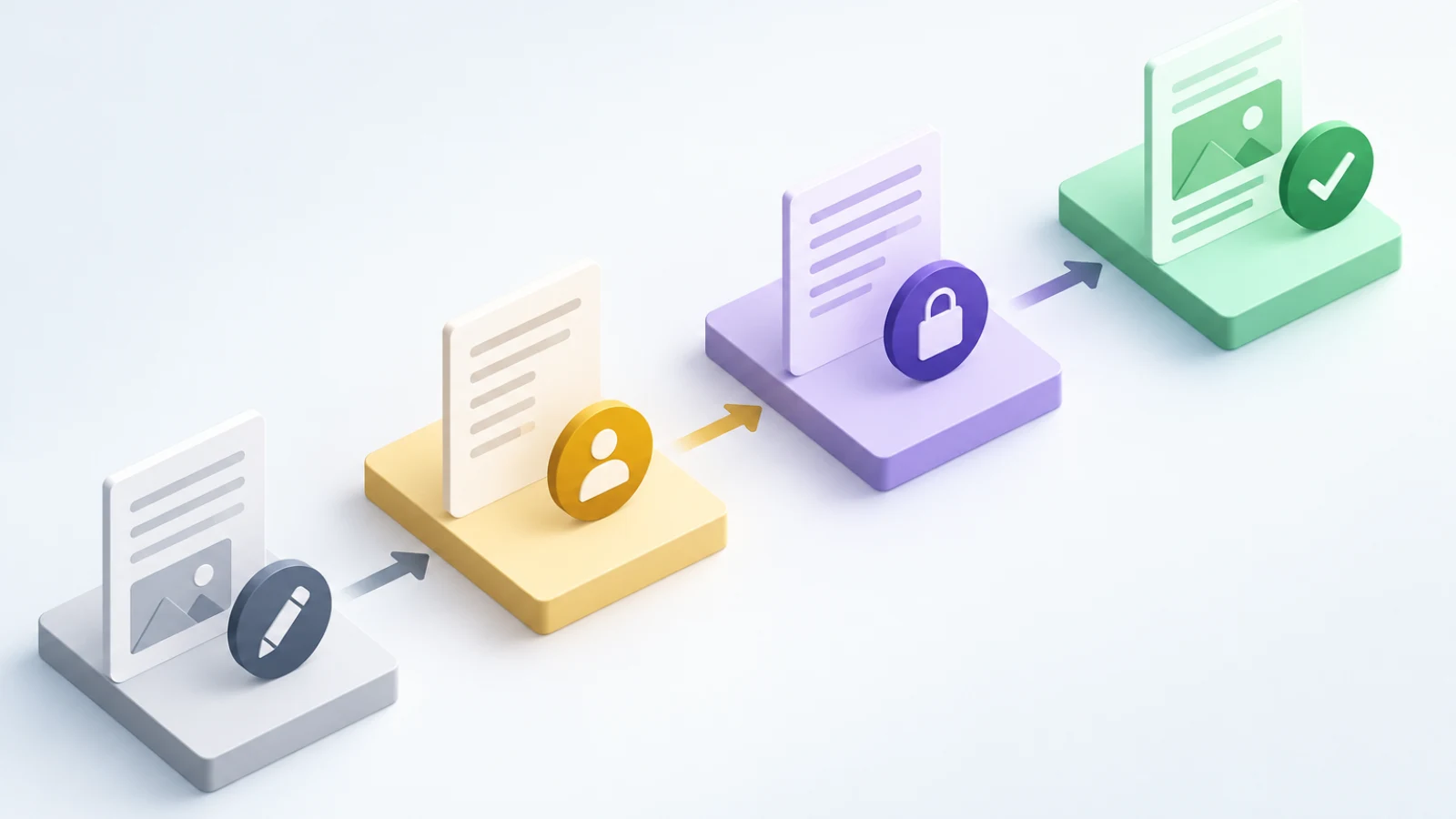
WordPress post visibility settings help a team decide who can access a post and when it should be released. Use this guide to separate editorial readiness from public availability, assign a clear decision owner, and confirm the final state before a post reaches its intended audience.
A post can be accurate, well written, and still be in the wrong release state. WordPress post visibility settings determine whether a published item is public, private, or password protected (Set blog content visibility (Block Editor) – Documentation – WordPress.org), while post status describes where the item sits in the publishing process. For teams, treating those as separate decisions helps prevent an unfinished draft from being released, a reviewed article from sitting unnoticed, or a restricted item from being shared more broadly than intended. (Set blog content visibility (Block Editor) – Documentation – WordPress.org) (Post Status – Documentation – WordPress.org)
In this guide
Separate status from visibility before making a release decision
Status answers a workflow question: is the post still being written, waiting for a reviewer, set for a future release, or already published? Visibility answers an audience question: once the post is published, who may view it? (Set blog content visibility (Block Editor) – Documentation – WordPress.org) A team should name both values in its publishing record instead of using “ready,” “approved,” or “live” as loose shorthand. (Post Status – Documentation – WordPress.org) (Set blog content visibility (Block Editor) – Documentation – WordPress.org)
In core WordPress terminology, a draft is not yet published (Post Status – Documentation – WordPress.org), pending indicates that a user with publishing capability must act (Post Status – Documentation – WordPress.org), future is scheduled for a later date (Post Status – Documentation – WordPress.org), and publish is viewable by everyone (Post Status – Documentation – WordPress.org). WordPress installations can also use custom statuses (Post Status – Documentation – WordPress.org), and themes, plugins, roles, and editorial tools can change what people see or are allowed to do. Confirm the controls on the specific site rather than assuming every screen will match a general guide. (Post Status – Documentation – WordPress.org)
Compare common WordPress states by audience and next action
A practical status and visibility comparison
| State or setting | Who can normally view it | What it means for the team | Recommended confirmation |
|---|---|---|---|
| Draft | Users with suitable WordPress access | Work is incomplete or not approved for release | Name the writer and the next reviewer |
| Pending | A reviewer or publisher with suitable capability | The item awaits a publishing decision | Record who must review and by when |
| Scheduled | The public when the future publication event occurs | The item has a planned release time | Verify date, time zone, content approval, and the scheduling action |
| Published and public | Everyone | The item is released publicly | Check the live URL, visible content, and intended links |
| Published and private | Authorized WordPress users with suitable roles | The item is published but not publicly accessible | Confirm the required audience and user access |
| Published and password protected | Visitors who provide the password | The item requires a password to display its protected content | Decide how the password is shared and whether this access method fits the content |
The table is a decision aid, not a substitute for the site’s own role configuration. For a broader view of ownership, handoffs, calendar changes, and release controls, use a practical WordPress content publishing workflow that defines the people responsible for each decision.
Use a controlled decision sequence from draft to release
Start with the intended audience, not the button available in the editor. Ask whether the post is for public readers now, public readers later, a named internal review group, or people who have been given a password. Then decide whether the content has completed the team’s editorial approval process. Those two answers point to the correct visibility and status more reliably than treating scheduled as a synonym for approved or private as a synonym for confidential.
Release sequence
- Keep the post as a draft while the writer, editor, and subject-matter reviewers are still changing it.
- Move it to pending review when the writer’s work is complete and a named person must decide whether it is publishable.
- Return it to draft or a clearly labeled internal review state when a reviewer requests material changes.
- After approval, choose public publication now or a specific future date and time for a scheduled release.
- Choose private or password-protected visibility only after confirming that the intended recipients can actually access the post as planned.
- After release, verify the resulting public or restricted experience rather than relying only on the editor’s saved setting.
Choose public, private, or password-protected access deliberately
Public is the default release choice for general website content
Public visibility is appropriate when the organization intends anyone who reaches the post to be able to view it. WordPress documentation describes public as the default visibility (Set blog content visibility (Block Editor) – Documentation – WordPress.org) and says public content is visible to the outside world once published (Set blog content visibility (Block Editor) – Documentation – WordPress.org). Before using it, check the title, excerpt, featured image, internal links, calls to action, and any details that were originally written for internal review. (Set blog content visibility (Block Editor) – Documentation – WordPress.org)
Private is a WordPress access setting, not a complete information-security plan
Private content is not visible to ordinary visitors, including visitors who guess the URL. (Set blog content visibility (Block Editor) – Documentation – WordPress.org) WordPress documentation also warns that editors and administrators in a multiple-user environment can see and modify private posts (Set blog content visibility (Block Editor) – Documentation – WordPress.org). Use private visibility for a limited WordPress-user audience only when that access model matches the purpose; do not assume it isolates material from every person who has elevated site access. (Set blog content visibility (Block Editor) – Documentation – WordPress.org)
Password protection changes the visitor experience
For a password-protected post, visitors are shown a password prompt before they can see the protected content. (Set blog content visibility (Block Editor) – Documentation – WordPress.org) The password-protection documentation notes that the post’s title is shown and that its content is replaced by a password form until the correct password is entered. Treat this as a practical sharing mechanism, and test it in the same browser context a recipient will use before distributing the URL or password. (Set blog content visibility (Block Editor) – Documentation – WordPress.org) (Protect posts with password – Documentation – WordPress.org)
Worked example: correct a mismatch between approval and scheduling
Illustrative example
Input: A marketing coordinator has completed an article about an upcoming service update. The post is set to public and scheduled for Tuesday morning. A product reviewer then reports that the service description will change after the article’s planned date.
Mapping: The intended audience remains public, but the article is no longer approved as written. The team should separate the audience choice (public) from the workflow choice (not ready for release).
Error: Leave the status scheduled because the calendar slot is valuable, while adding a note for someone to revise it later.
Correction: Remove the future release, return the post to the team’s review state, assign the product reviewer and editor, update the affected copy, links, and call to action, obtain approval again, then choose a new publication time or publish deliberately. Record the reason for the change so the next person understands why the date moved.
Run one final confirmation before the intended release
A concise final check is most useful when it confirms the release decision rather than repeating every editorial review. Make it a required handoff between the person who approves the content and the person who can change its WordPress state. On sites using the Block Editor, the settings sidebar can expose status, visibility, and publication timing controls, although the available sections may vary with the theme and plugins.
Final release confirmation checklist
- The intended audience is stated plainly: public readers, authorized WordPress users, or password holders.
- The selected visibility matches that audience.
- The selected status matches the current editorial state: draft, pending review, scheduled, or published.
- A named approver has confirmed that the current text, assets, links, and business statements are ready.
- For a schedule, the date, time, and site time zone have been checked by the responsible publisher.
- For restricted content, the team has tested access from the recipient’s perspective and agreed how access will be communicated.
- The person responsible for monitoring or correcting the release is known.
- After release, the team will inspect the destination experience appropriate to its visibility.
Escalate uncertainty instead of guessing at a setting
Pause the release and ask for an owner decision when the desired audience is unclear, a required reviewer is unavailable, an unexpected permission message appears, a scheduled date now conflicts with a business change, or the post contains information that should not be broadly shared. The right escalation is usually small: identify the question, name the person who can decide it, change the post to a non-releasing state, and record what must happen before publication resumes.
Access and editorial approval are different controls. A person may have the technical ability to publish without being the person who approves the organization’s message. Teams that need to define those boundaries before connecting people or tools to a site can review WordPress Publishing Permissions: What Teams Should Confirm Before Connecting a Site.
Frequently asked questions
Key takeaways
- Treat post status and post visibility as separate decisions: one controls workflow and the other controls the intended audience.
- Keep unfinished work in draft, use pending review for a defined approval handoff, and schedule only after the current version is approved.
- Use private and password-protected visibility with a realistic understanding of who can access the content and how recipients will be served.
- Before release, confirm the audience, approver, status, timing, and person responsible for post-release verification.
- When a release condition becomes uncertain, stop the release, return the post to review, and document the next decision owner.
Bring more control to your publishing process
SearchWeave supports authorized WordPress connections with article review, editing, scheduling, rescheduling, and pause controls before automatic publication. Explore SearchWeave’s WordPress publishing options if your team wants a more deliberate path from planned content to release.
Sources and references
Post Status – Documentation – WordPress.org
Set blog content visibility (Block Editor) – Documentation – WordPress.org