

To schedule WordPress blog posts reliably, treat every publish date as a controlled editorial decision—not a permanent automation setting. This guide shows how to choose dates, make changes, protect approved drafts, and restart a paused calendar without creating confusion.
A publishing calendar is useful because it turns good intentions into visible commitments. It can also become risky when a team assumes that a scheduled date remains correct after priorities, approvals, product details, staffing, or business circumstances change. A controlled blog scheduling workflow gives people permission to change the calendar while preserving the reason for the change, the article’s approval state, and the next decision owner. The goal is not to publish on every original date; it is to publish material that is still accurate, appropriate, and ready.
The approval examples below describe a team that has chosen review before publication. SearchWeave’s default is automatic publishing; a per-article human review applies when that mode is selected. Follow your site’s chosen publishing policy when assigning reviewers or resuming work.
Contents
Why publishing plans change
A date on a calendar reflects what the team knew when it set that date. It is reasonable to revisit it when an approver identifies an unsupported claim, a launch moves, a topic becomes less relevant, a required asset is missing, or the organization needs to focus elsewhere. The operational mistake is not changing a date. It is changing it silently, after the post has moved through review, or without deciding whether the content itself now needs another review.
Set decision rules before the calendar becomes busy
Set a few rules while the team is calm. Define who may set a publish date, who may move it, which changes require renewed approval, and how close to publication a post can be altered without a deliberate check. These rules should work for a one-person business as well as a larger team: one person may hold several roles, but each decision should still have a named owner.
A simple decision model
| Situation | Default action | Decision owner | Required record |
|---|---|---|---|
| Article is complete and approved | Schedule it | Publisher | Date, time, time zone, approver |
| Minor timing conflict | Reschedule it | Content owner or publisher | Old date, new date, reason |
| Material content change | Return it to review before scheduling | Approver | What changed and who must recheck it |
| Organization-wide interruption | Pause future publication | Content owner | Scope, reason, restart condition |
| Post is no longer useful | Cancel or archive the plan | Content owner | Decision and replacement topic, if any |
Choose a realistic publish date
Schedule from the last required decision backward, not from the desired publishing frequency forward. Start with the intended publication time, then reserve time for factual review, editorial revision, approval, formatting, a preview, and a final check. If any of those steps lacks an owner or enough time, the post is not ready to be scheduled as a firm commitment.
On WordPress.com, a future publication date and time can be set from the post settings, after which the post shows a scheduled status. (Schedule posts and pages in WordPress | WordPress.com Support) Confirm the site’s configured time zone and verify that the schedule action—not only a saved draft—was recorded. WordPress.com also notes that its scheduled posts are triggered by a site visit after the scheduled time, so teams using that environment should include a post-time verification step rather than assuming that automation completed successfully.
Tested self-hosted WordPress walkthrough
Tested October 30, 2026, in an isolated self-hosted WordPress 7.1.3 QA site using the block editor and a synthetic post. These are observed editor states, not a claim that a scheduled publication fired at its due time. Plugins, hosting, and editor versions can change the controls. The QA site remained excluded from indexing.
- Inspect the timezone. In Settings → General, check Timezone. This QA site used New York (America/New_York). The dates below are site-local times; check this setting before interpreting a scheduled hour.
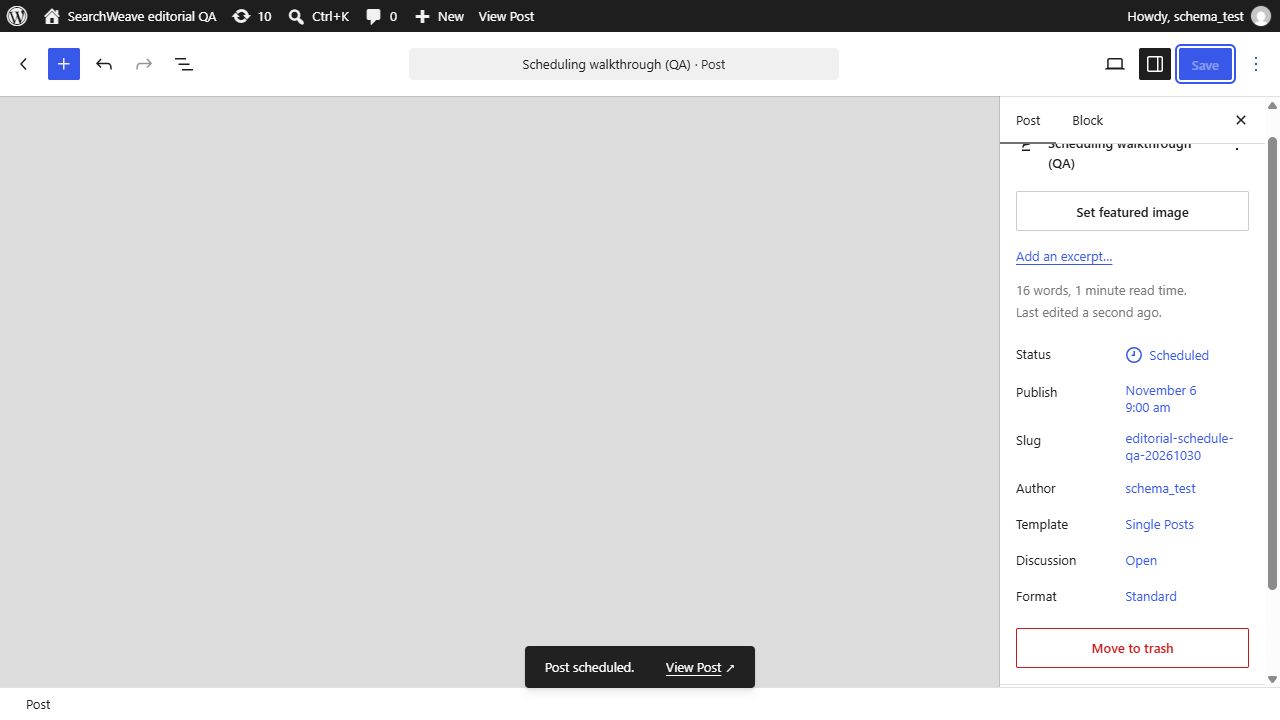
- Schedule the draft. Open the post’s Settings → Post sidebar. Beside Publish, click Immediately, choose November 6, 2026 at 9:00 am, and close the date picker. Click Schedule, then Schedule in the confirmation panel. The saved post showed Status: Scheduled and the selected date.
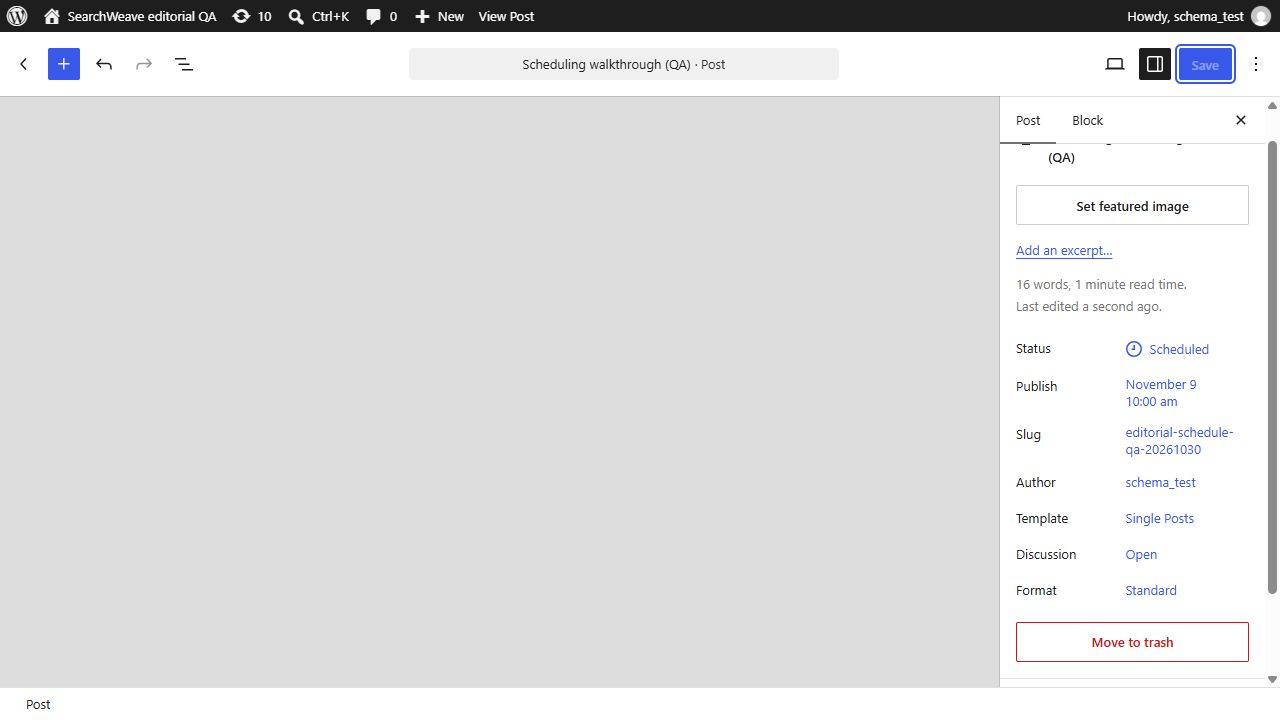
- Move the date. Click the existing Publish date, change it to November 9 at 10:00 am, close the picker, and click Save. The status stayed Scheduled and the saved date changed to November 9 at 10:00 am.
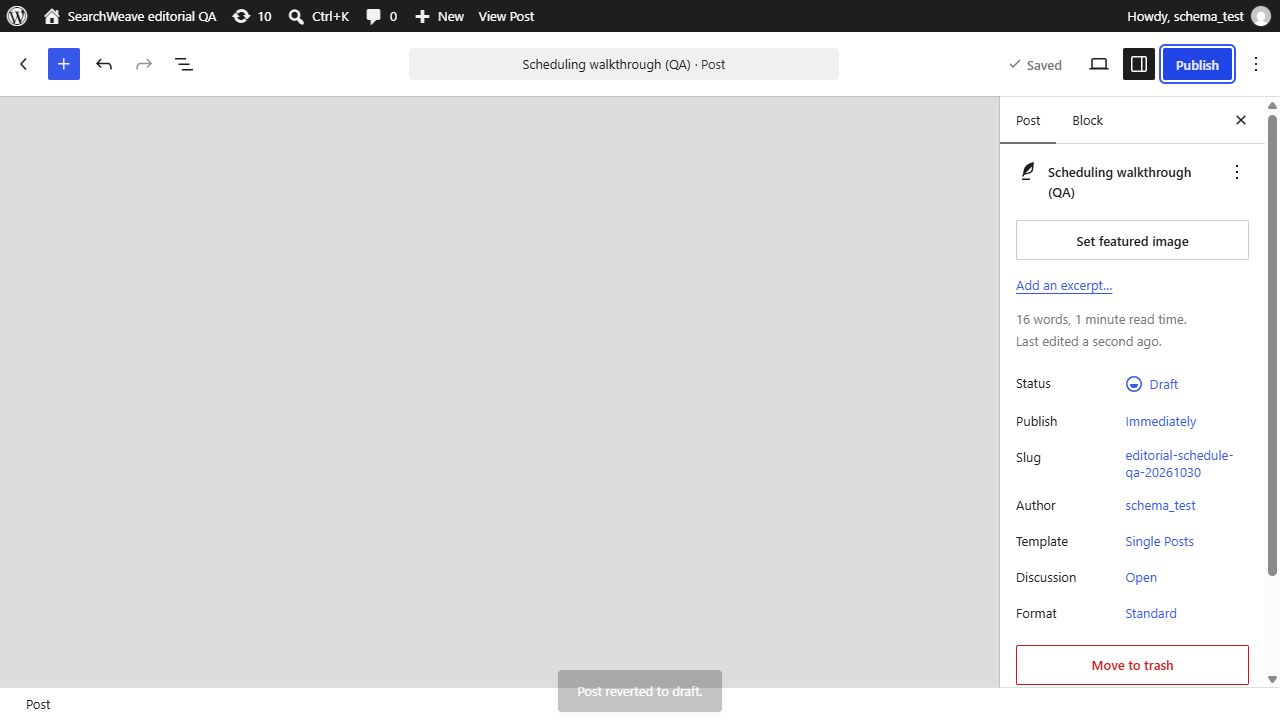
- Stop this post’s scheduled publication. Click Scheduled beside Status, select Draft, close the status panel, and click Save. WordPress confirmed “Post reverted to draft.” The saved status became Draft and Publish showed Immediately in this test. Before scheduling again, choose and verify a new future date.
A draft action affects one WordPress post. It does not pause SearchWeave’s publishing queue or cancel work managed by another scheduler. If an external application controls publication, record the hold there as well and verify its pending work before relying on the WordPress change. This walkthrough tested only the per-post WordPress transitions; it did not pause a production site or test an application-wide pause.
Check the scheduler as well as the date. Native WP-Cron checks due tasks on page loads, so a low-traffic site can publish late unless another scheduler invokes it. Hosting may provide a system scheduler; confirm your setup with the host. The WordPress.com guidance above describes that hosted service separately. In either environment, verify the public page after its intended publication time.
When to reschedule a blog post
Reschedule when the article is still useful and the reason for moving it is temporary or timing-related. Common examples include an approver being unavailable, a competing announcement needing space, a needed image arriving late, or a campaign sequence changing. Before moving the date, check whether the change affects only timing or also the truth, relevance, audience, call to action, links, and supporting assets. If the content changes materially, move it back to review rather than treating the calendar edit as a purely administrative task.
Illustrative: a controlled rescheduling decision
Input: An approved article is scheduled for Thursday, but the service detail in its call to action will change next week. Mapping: classify the change as material because it affects a business statement and the next action. Error: move the date to next Tuesday without reopening review. Correction: change the status to review required, assign the relevant owner to verify the service detail, update the copy and links, obtain approval again, then record the new date and reason in the change log.
When to pause content publishing
Pause future publication when the team cannot responsibly maintain the conditions for release. That can include a broad business change, an unresolved accuracy issue across planned articles, a temporary loss of approval capacity, or a need to reassess editorial priorities. A pause is a control measure, not evidence that the content program has failed. It creates space to make a deliberate decision instead of letting pre-set dates make that decision by default.
A pause checklist
- Identify every post that is scheduled, in review, approved, or waiting on an asset
- Decide whether each scheduled post should remain scheduled, be rescheduled, or return to draft status
- Record the pause scope, decision owner, date, reason, and condition for restarting
- Tell reviewers and publishers which work must stop and which work may continue
- Preserve approved copies, review notes, source links, and asset references
- Set a calendar date to reassess the pause rather than leaving it indefinite
Communicate calendar changes to reviewers
A calendar update is not complete until the people affected can understand it. Send one short notice that identifies the article, prior status, old and new dates, reason for the change, whether content review is required, and the next owner. Avoid asking people to infer whether their previous approval still applies. If approval is still valid, say so; if it is not, name the exact decision or claim that needs rechecking.
Protect approved drafts and review notes
Do not let a postponed date erase the editorial record. Keep the approved version identifiable, retain reviewer comments and evidence that informed the approval, and label later edits clearly. A post that returns to draft is not necessarily rejected; it may simply be waiting for a known condition. This distinction prevents teams from accidentally publishing an older version or assuming a draft is ready because it was approved months earlier.
WordPress.com describes Draft, Pending, Private, Scheduled, and Published as distinct post statuses or visibility choices. (Control who can see a page or post in WordPress | WordPress.com Support) Its guidance says drafts are private while being worked on, pending status can signal that a post needs review, and private posts are visible only to Administrators and Editors on the site. Check the behavior and permissions on your own WordPress setup before relying on any status as an approval control.
Restart after a pause with a fresh review
Restarting is not a matter of turning every old date back on. Review the backlog in priority order and ask whether each topic still serves a current reader need, whether its claims and links remain accurate, and whether the original approver should review it again. Then schedule only the posts that have passed that check, leaving enough time between releases for the team to verify the live result. For the broader sequence from draft through post-publication review, use this practical WordPress publishing workflow.
Use a calendar change log template
Use a lightweight log beside the editorial calendar. The log is not bureaucracy for its own sake; it makes calendar movement reviewable, helps a substitute publisher understand the latest decision, and exposes repeated blockers that may need a process change.
Calendar change log fields
| Field | What to record |
|---|---|
| Article | Working title or URL |
| Change date | When the decision was made |
| Status before and after | For example, approved to review required |
| Schedule change | Old date and time; new date and time |
| Reason | A concise operational explanation |
| Content impact | Timing only or material content recheck needed |
| Owner | Person responsible for the next action |
| Approval record | Approver and date, when applicable |
| Restart or review date | When the item will next be reconsidered |
Frequently asked questions
Key takeaways
- Treat the publication date as a decision that can change, not a promise automation must fulfill
- Assign owners for scheduling, rescheduling, renewed approval, and pause decisions
- Reschedule timing conflicts, but return material content changes to review
- Pause future releases when necessary checks cannot be maintained
- Keep a readable record of approved versions, change reasons, and restart conditions
- Verify the live result after the scheduled time instead of assuming publication occurred
Bring more control to your publishing calendar
SearchWeave supports authorized WordPress connections and scheduled automatic publishing, with controls to review, edit, reschedule, or pause planned publication. Explore SearchWeave’s WordPress publishing options when you want a more deliberate path from article planning to release.
Sources and references
Schedule posts and pages in WordPress | WordPress.com Support
Control who can see a page or post in WordPress | WordPress.com Support